YouTube offers a wealth of high-quality video content. Most YouTube videos are free, but they also come with a variety of ads. Are you tired of those annoying YouTube ads when you watch videos? To solve this problem, this article will show you how to block ads on YouTube with a YouTube ad blocker
Most of the time, you can skip YouTube ads after five seconds, but sometimes you have to watch full video ads within the same video.
YouTube offers different ad formats, such as display ads, overlay ads, skippable video ads, bumper ads, and sponsored cards.
You may be wondering whether blocking ads on YouTube is legal?
Blocking ads on YouTube (or on any other website) is not illegal, but many content creators rely on advertising revenue to support their channels. Therefore, when viewers use an ad blocker on YouTube, creators are not paid. Fortunately, there are ways to remove ads while still supporting the people who created the videos.
But you should know that ads are the main source of income for some YouTube creators. If you want to support a YouTube creator, you can choose to watch YouTube ads.
How to block ads on YouTube?
There is a way to help you watch YouTube without ads for free, without browser extensions, with Shelblock, an anti-ad software for PC. It blocks ads and trackers in your browser, but also those in applications installed on your computer.
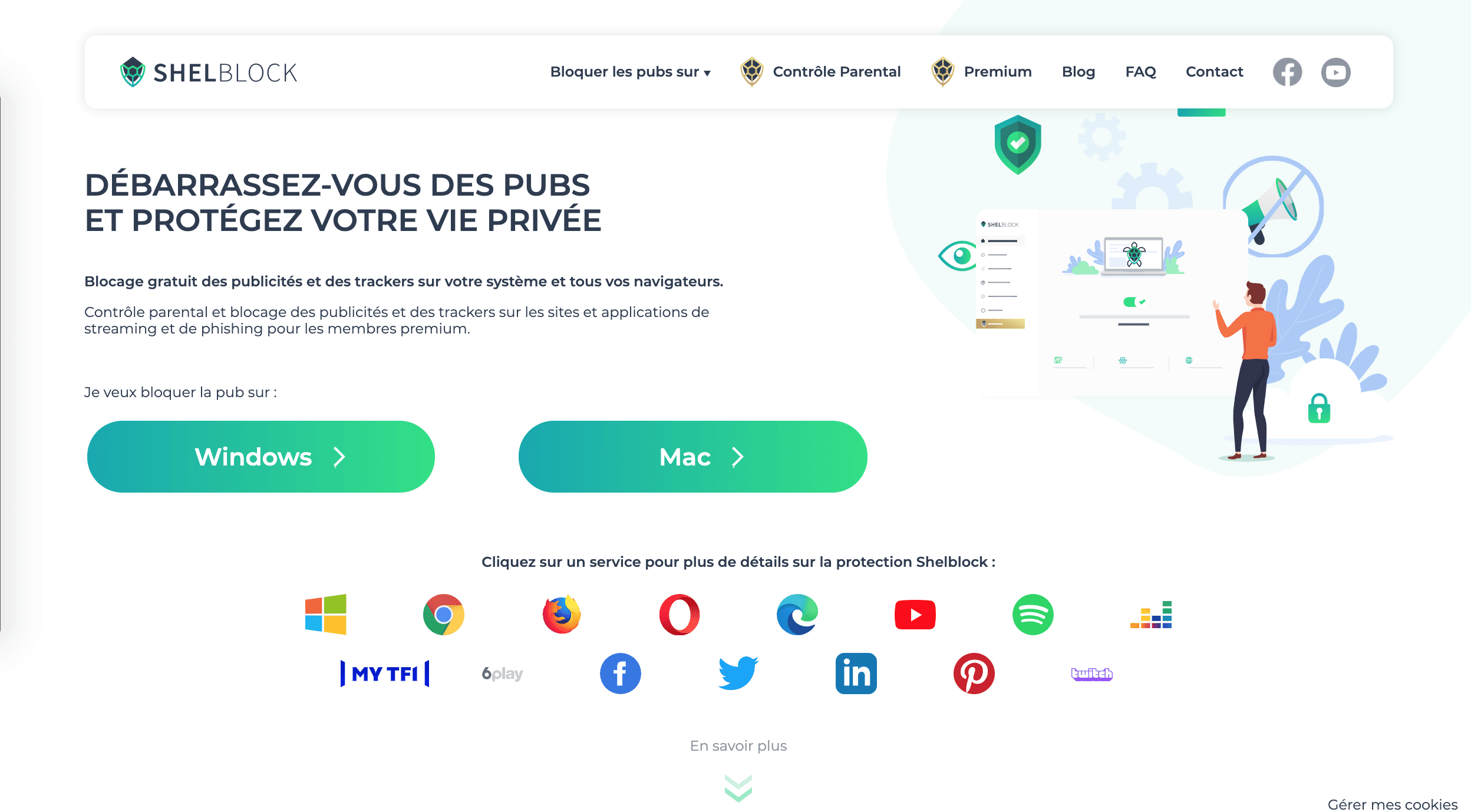
It can be downloaded from shelblock.com and installs for free on Windows with the latest versions 7, 8, 8.1 and 10.
With Shelblock Premium, you can also stop advertising on streaming sites and apps such as Spotify, Deezer and YouTube (not just the banner ads that can already be blocked with the free version).
This premium version also strengthens the blocking of phishing sites and virtual currency sites for better privacy protection.
Finally, it allows you to enable parental controls to block certain websites for children, filter search engine results, and set a password to use Shelblock.
Here is the step-by-step solution to block ads on YouTube from your Windows computer:
Step 1: Download the Shelblock software to your computer from the website.
Step 2: Install the Shelblock software on your computer.
Step 3: Open a web browser, then an icon appears on the screen that lets you choose whether or not to enable the ad blocker on certain pages. Shelblock works with Google Chrome, Microsoft Edge, Mozilla Firefox, Opera, etc…
Step 4: To enable or disable ad blocking on YouTube, it couldn’t be simpler: from the “Advanced Blocking” tab, control all your streaming apps that are blocked by default.
You can access the Premium version from the menu and try the new version free for 15 days with no purchase required.
Once Shelblock is installed, you will be able to block all ads on the YouTube website. You can watch videos without ads, and you don’t have to pay anything for YouTube.